Volume Booster for Android
- 4.6
- Rating
- 10.00M
- Installs
- Free
- Price

 Analysis by App-foxy
I installed Volume Booster to see whether it could make a noticeable difference in everyday listening, rather than judging it only by its short store description. It is a free Music & Audio app from ZipoApps for Android, aimed at people who feel that their phone, headphones, or small speaker does not get loud enough. My first impression is that it is straightforward: the purpose is immediately clear, and the app is easier to understand than many audio tools that bury the useful controls beneath equalizers and technical menus.
The important thing is to set realistic expectations. This is a software volume enhancer, not a replacement for a stronger speaker or better headphones. It can make a device feel louder in situations where the normal output is too restrained, but the result depends heavily on the phone, the audio source, the accessory, and the recording itself. Its best use is a careful extra lift, not an excuse to run every sound at maximum.
How Volume Booster feels in everyday use
I focus here on the small decisions that make a volume booster useful rather than startling: how I judge whether a clip needs help, and how I keep that adjustment from carrying over to the next thing I play. Once that routine feels comfortable, it becomes easier to decide whether this simple tool fits your listening habits or whether the phone’s built-in controls are enough.
You May Also Like

 Blood Strike: 2.5 Anniversary
Blood Strike’s Loadouts Turn Every Drop Into a Tactical Gamble
A close look at Blood Strike’s custom loadouts: how fast access to signature weapons reshapes its battle royale rhythm, rewards preparation, and narrows the gap between fights.

 Pandora - Music & Podcasts
Pandora’s Music Is Easy to Start, but Harder to Recover
Pandora’s strength is its low-effort path from a seed to a station. Its weak spot is how much confidence it asks you to place in connection, setup, and quiet recovery.

 8 Ball Pool
 Is Built on Rivalries, Rematches, and Routine
A close look at the rivalries, rematches, shared routines, and unanswered safety questions that turn a quick pool match into a persistent mobile community.

 Samsung Music
’s Quiet Strength Is Playing What You Already Own
Its reach comes less from spectacle than from dependable access to a personal library. That simplicity is both the app’s strongest retention engine and its ceiling.

 AccuWeather: Weather Radar
AccuWeather Review: A Quick, Clear Forecast for Everyday Decisions
For everyday plans, the best forecast is the one you can understand quickly. AccuWeather makes rain timing, radar, and local conditions easy to act on, with a few trade-offs.

 Hill Climb Racing
Why Hill Climb Racing Still Turns Crashes Into One More Run
A tiny car, a bumpy hill and one more upgrade: Hill Climb Racing keeps resurfacing because its simple chaos makes every near-miss feel personal.
More From Our News Desk



Quick results without a long setup
Speed is one of the pleasant parts of this app. A volume tool has a very simple job, so I do not want to spend several minutes configuring it before listening to anything. Volume Booster is built around that expectation. I can open it when a video sounds too quiet, raise the output, and return to what I was doing without treating the app like a full recording studio.
That simplicity also makes it approachable for someone who does not know the difference between gain, equalization, compression, and other audio terms. You do not need to understand sound engineering to try it. The practical workflow is familiar: start with the phone’s normal volume, use the booster gradually, and stop as soon as voices or music become comfortable.
In my experience, the perceived improvement is most useful with spoken content that is slightly quiet, older recordings, casual clips, and listening in a room where background noise is present. It is less impressive when the original audio is already distorted or when the phone’s physical speaker has reached its natural limit. Increasing a weak signal cannot restore detail that was never recorded.
What happens during heavier listening
The demanding moments are not necessarily long music sessions. A more realistic test is switching between a podcast, a video, a notification, and a call, then adjusting the level because each source has a different loudness. That is where a booster can become either convenient or irritating. If the output is left high after one quiet clip, the next piece of audio may sound unexpectedly aggressive.
I recommend treating the app as a situational adjustment rather than a permanent setting. For example, if I am watching a dialogue-heavy video on a kitchen counter while water is running, I might increase the level just enough to follow the conversation. When the video ends, I lower it again before opening music or a game. This small habit matters more than chasing the highest possible setting.
Music exposes the trade-off more clearly. A louder track can feel more energetic at first, but excessive amplification may make cymbals harsh, vocals tiring, or bass muddy, especially through inexpensive speakers. The app can help when the output is simply too quiet; it cannot turn modest hardware into a powerful hi-fi system. For long listening, moderate enhancement is much more comfortable than an aggressive boost.
Stability and recovery after a bad setting
A useful volume app should not leave me guessing about how to get back to normal. The safest recovery method is simple: reduce the booster and the device’s regular volume instead of trying to compensate with another audio control. If sound suddenly becomes harsh after switching sources, I return to the phone’s standard level first, then reopen the app only if the original problem remains.
This is also why I would avoid changing the setting repeatedly while wearing headphones. It is easy to forget how much extra amplification was applied, particularly when moving from a quiet room to a noisy street. I prefer making one small adjustment, checking the result, and keeping the control there only for the current listening task.
Volume Booster feels more dependable when used conservatively. The app’s role is clear, and that clarity reduces the chance of getting lost in unnecessary adjustments. Still, no software volume control can guarantee the same result across every Android phone and accessory. The hardware’s own limits remain part of the experience.
Android compatibility and practical device limits
The app supports Android devices running version 5.0 or later, which covers a wide range of phones and tablets. That broad requirement is useful if you are using an older Android device and do not want to replace it merely to try a basic audio utility. At the same time, older hardware can have weaker speakers, less refined audio processing, or unusual manufacturer controls, so compatibility does not mean identical performance.
On a modern phone with decent speakers, the difference may be subtle because the device already manages loudness reasonably well. On an older handset, the extra volume may be more noticeable, but so may the rough edges: distortion, thin sound, or a lack of clarity. This is a key trade-off. The app may solve “I cannot hear this clearly” in one situation while creating “this sounds unpleasant” in another.
Headphones change the equation again. Wired earbuds, Bluetooth headphones, and portable speakers each handle volume differently. Some accessories have their own volume controls, and some phones apply separate limits or audio processing. If Volume Booster does not seem to change much, the bottleneck may be outside the app. Checking the accessory’s own level and the phone’s media volume is more sensible than assuming the application has failed.
Resource expectations and keeping the experience sensible
Because this is a focused audio utility rather than a large media editor, I approach it expecting a light, quick interaction. I would not choose it for advanced sound design, mixing, or detailed speaker correction. Its value is in the immediate adjustment, not in maintaining a complicated audio workspace.
Even with a simple tool, I would not leave amplification higher than necessary. That is good for listening comfort and helps avoid making every later sound unexpectedly loud. It also gives the app a clearer purpose: use it when the current source needs help, then return to a normal level when the situation changes.
People who monitor battery, storage, or general responsiveness closely should remember that the app cannot overcome a phone that is already struggling. If the device is slow because of many other applications, low free storage, or an aging battery, a volume enhancer is not a performance fix. In that situation, the right solution is device maintenance or better audio hardware, not another increase in output.
Where it fits among the usual alternatives
The first alternative is the phone’s built-in volume control. That remains the cleanest option when it already provides enough loudness, because it involves fewer moving parts and keeps the audio behavior familiar. I would use the built-in control alone for normal music, calls, and videos unless a particular recording is unusually quiet.
The second alternative is an equalizer or a manufacturer audio panel. Those tools can be better when the real problem is balance rather than volume. If voices are buried under bass, reducing low frequencies may improve intelligibility more effectively than raising everything. If you want to shape a music collection carefully, an equalizer is the more appropriate category of tool.
There is also the hardware route: better headphones, a portable speaker, or simply moving closer to the device. Hardware usually gives a more natural improvement and may preserve clarity at higher listening levels. Volume Booster makes more sense when you need a convenient software adjustment and do not want to buy equipment for occasional quiet playback.
That distinction helps define the audience. I would recommend trying it for casual videos, podcasts, older phones, and moments when the standard output is almost adequate. I would skip it if your priority is studio-quality sound, precise tonal control, or consistently powerful playback. In those cases, better headphones or a dedicated audio solution is the wiser investment.
Useful habits that make the app easier to live with
Start with the normal Android media level, then add only enough enhancement to make speech or music comfortable.
Test a short section of the actual video or song before settling on a setting; different recordings can react very differently.
Lower the level before switching from a quiet podcast to music, a game, or a notification-heavy activity.
When sound becomes harsh, reduce the boost instead of trying to fix the problem by increasing other controls.
For headphones, check both the phone and the accessory so you know which control is actually limiting the result.
These are small steps, but they address the most common frustration with volume enhancers: the user remembers the setting, not the reason it was needed. A quiet clip may require extra help while the next source does not. Using the app temporarily produces a more consistent experience than leaving one strong level active all day.
What the current release tells me about its place
The current version is 13.3.8, and the app has been available since September 12, 2019. That gives it a long enough presence to feel like an established utility rather than a brand-new experiment. It has also passed ten million installs, with an average rating of 4.5 from around 156 thousand ratings and roughly 3.5 thousand written reviews. Those figures suggest that the basic idea has broad appeal, although popularity should not be confused with identical results on every device.
It is free to install, which makes trying it low-risk in the practical sense. There are in-app purchases ranging from $0.99 to $279.99 per item, so I would pay attention to any purchase screen and avoid assuming that every option is included simply because the initial download costs nothing. For a basic volume adjustment, I would first decide whether the free experience already solves the problem before considering anything extra.
The Everyone content rating also makes the app approachable for a broad audience. That does not remove the need for sensible listening habits, particularly with headphones or for children. Loudness is still a personal safety matter, and a tool designed to increase output should be used with restraint.
Who should install it, and who should pass
I see the strongest case for someone whose phone is just slightly too quiet in ordinary situations. Perhaps dialogue disappears under household noise, a downloaded recording is mastered at a low level, or an older handset needs a little assistance. In those cases, the app can be a convenient bridge between “barely audible” and “comfortable enough.”
I would also consider it for a family member who wants a simple audio control rather than a technical equalizer. The purpose is easy to explain, and the workflow does not require learning a complicated vocabulary. That simplicity is a real strength when the goal is merely to hear a video more clearly.
I would pass if the phone’s speaker is already crackling, the headphones are uncomfortable, or the source is badly distorted. More amplification will not repair damaged hardware or poor recording quality. I would also choose another solution if I needed separate profiles for different headphones, detailed frequency adjustments, or reliable audio production controls. Volume Booster is focused, and its limits are part of that focus.
My performance verdict after living with it
Volume Booster succeeds when I treat it as a quick, situational aid. It is easy to understand, fast to try, and useful for the narrow problem it targets: audio that needs a little more presence than the device normally provides. The broad Android support and free entry point make it accessible, while the substantial install base shows why this type of tool remains popular.
Its weaknesses are equally important. The result depends on hardware and source quality, excessive amplification can make sound unpleasant, and it is not a substitute for an equalizer, stronger speakers, or better headphones. I would not leave it running at a high setting without checking what I am about to play next.
My recommendation is therefore practical rather than enthusiastic: install it if your Android device is often almost loud enough and you want a simple extra step before buying audio hardware. Use it gently, lower the level when changing sources, and judge success by clarity rather than sheer loudness. For occasional volume problems, it is a useful tool; for serious audio improvement, choose hardware or a more precise sound-control app instead.
FAQs for Volume Booster for Android
01What features does the Volume Booster app offer?
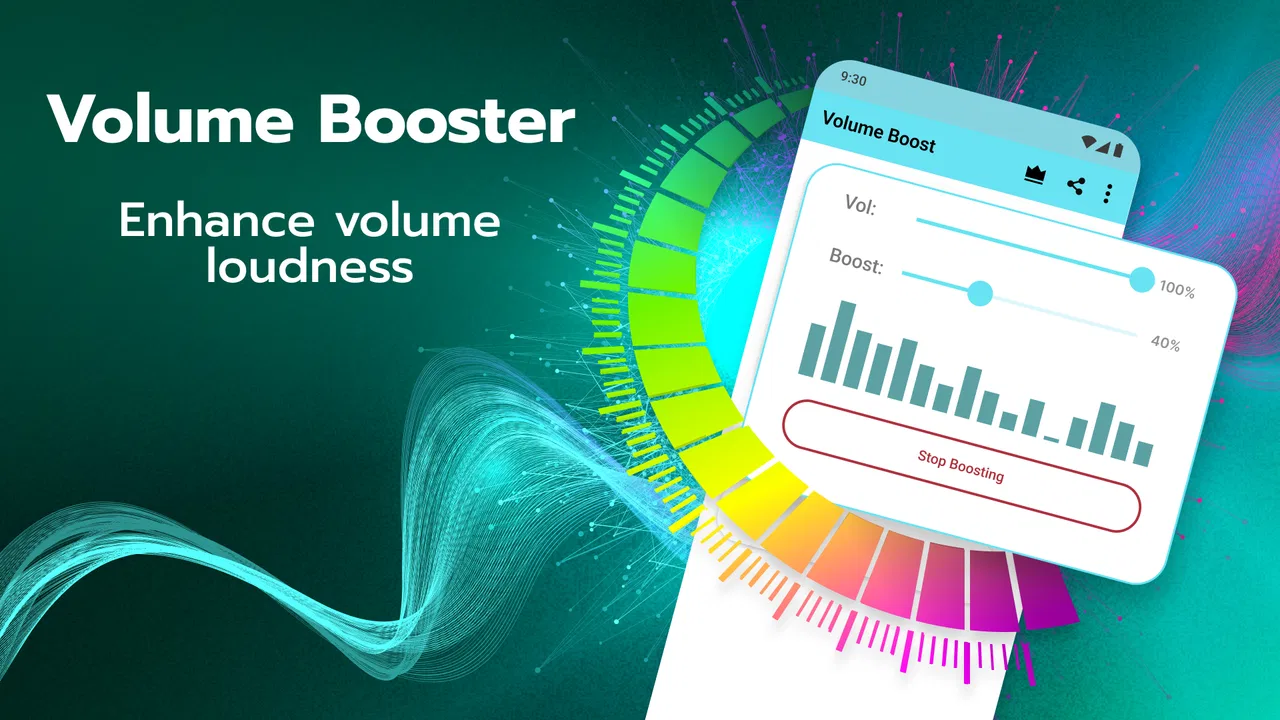
The Volume Booster app enhances audio levels across your device, including ringtones, media, and notifications. It provides a user-friendly interface with sliders for easy control and offers additional settings to customize sound profiles. Some versions may include a built-in equalizer to fine-tune audio output for an optimal listening experience.
02Is the Volume Booster app safe to use on my Android device?
Yes, the Volume Booster app is generally safe to use, but it's important to download it from a reputable source like the Google Play Store. Overusing volume-boosting features can potentially harm your device's speakers or lead to distorted sound, so use the app responsibly and within recommended limits.
03Can the Volume Booster app improve audio quality for all types of media?
While the app can increase the volume of all types of media, the improvement in audio quality depends on your device’s hardware capabilities. The app boosts the existing sound output but doesn't enhance the inherent quality of audio files. For best results, pair the app with high-quality audio devices.
04Does using the Volume Booster app affect battery life?
Using the Volume Booster app may have a minimal impact on battery life, as it runs in the background to amplify audio. However, the effect is generally negligible compared to more resource-intensive applications. Monitoring your device’s battery usage can help you manage its impact effectively.
05Will the Volume Booster app work with Bluetooth devices?
Yes, the Volume Booster app is compatible with Bluetooth devices. It can enhance the audio output of wireless headphones and speakers, providing a louder and clearer sound experience. However, the effectiveness may vary depending on the Bluetooth device’s specifications and limitations.
Pros
- Enhances audio quality significantly.
- Simple and user-friendly interface.
- Compatible with most media apps.
- No noticeable impact on battery life.
- Customizable sound settings available.
Cons
- May distort sound at high volumes.
- Contains intrusive ads during use.
- Limited support for older devices.
- Requires permissions for full functionality.
- No option for automatic volume adjustment.

Volume Booster for Android
Gallery